- Home
- S/4HANA
- Custom Analytical Queries
- Creation
Build an actual vs plan query
Step by step in Custom Analytical Queries, with a plan column that names itself
- F1572
- I_ActualPlanJrnlEntryItemCube
- Restricted measure
- Dynamic label
- Calculated measure
What you will build
| G/L Account | Actual Amt | PLN Amt | Variance | Var. % |
|---|---|---|---|---|
| 51000000 | 1,254,300.00 | 1,200,000.00 | 54,300.00 | 4.53 |
| 51100000 | 386,250.00 | 410,000.00 | -23,750.00 | -5.79 |
| 53000000 | 92,400.00 | 110,000.00 | -17,600.00 | -16.00 |
Before you start
One report, four columns, no code
The report lists cost by G/L account and cost center: what was posted, what was planned, and the difference in value and in percent. Everything is done in one Fiori app, on a cube SAP already delivers. If you have never opened the app, the Custom Analytical Queries overview explains how it works.
- The app
F1572Custom Analytical Queries
The Fiori app where key users build analytical queries on SAP’s released cubes. You need a business role that includes it.
- The data
I_ActualPlanJrnlEntryItemCubeActual and plan in one cube
Actual Plan of Journal Entry Item reads actual postings from the Universal Journal (ACDOCA) and plan data (ACDOCP) together, so one query can compare them.
- The plan
Plan CategoryPlan data to compare
Plan data must exist for at least one plan category, such as PLN in this example. The user chooses the category every time the report runs.
Step by step
From an empty query to a tile on the launchpad
Fifteen screens, in the order you go through them. Each one is the Fiori app redrawn with neutral data, and the numbers on the screen match the notes under it.
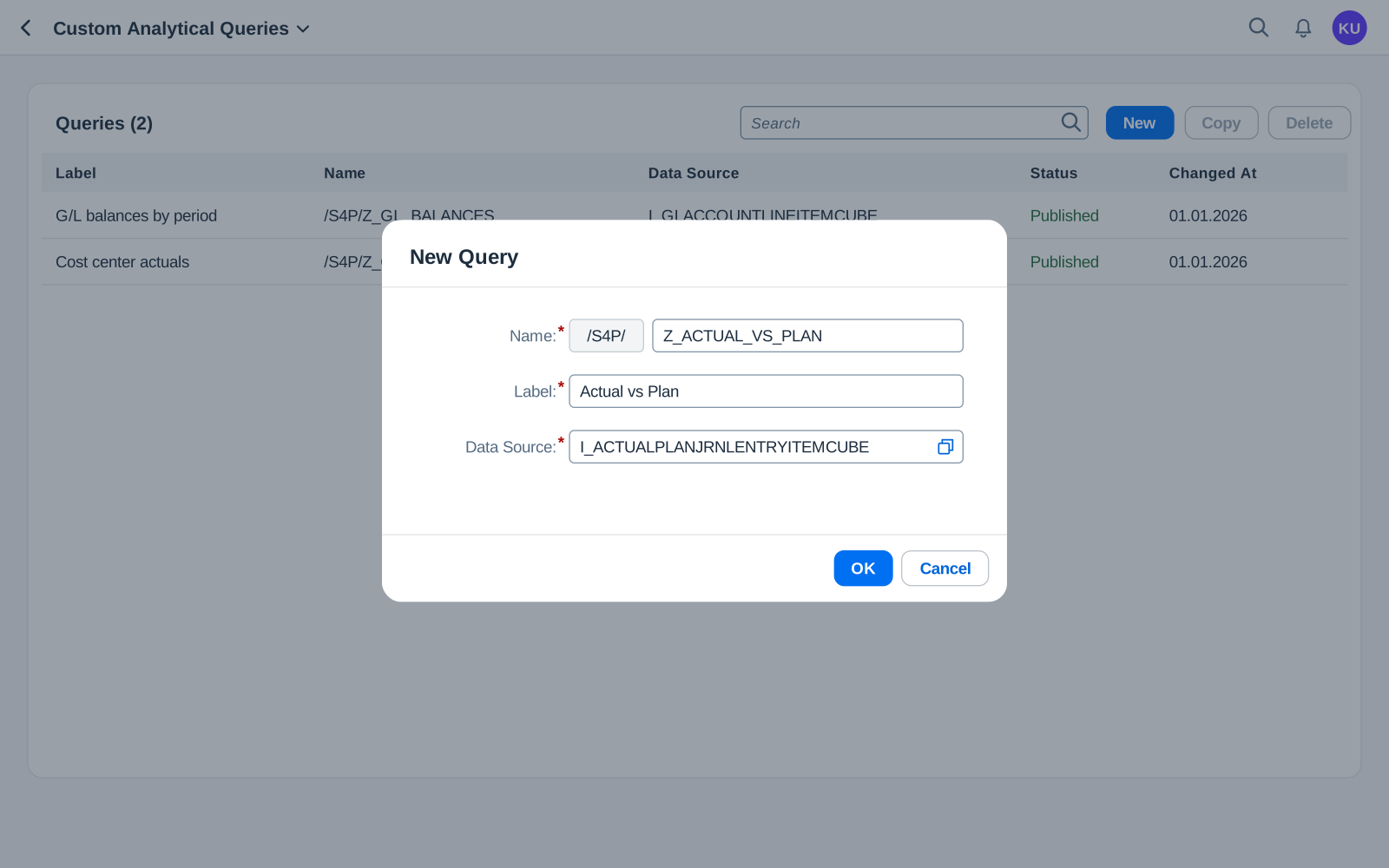
Step 1 of 15
NewStart a new query
Open the Custom Analytical Queries app and choose New. Give the query a name and a label, and pick the data source: Actual Plan of Journal Entry Item, the standard cube with actual and plan data. The system puts its prefix in front of the name, here the namespace /S4P/, and the name cannot be changed later. Choose OK.
- Name: /S4P/ + your Z name
- Label: the title users see
- Data source: the standard cube
- OK creates the draft
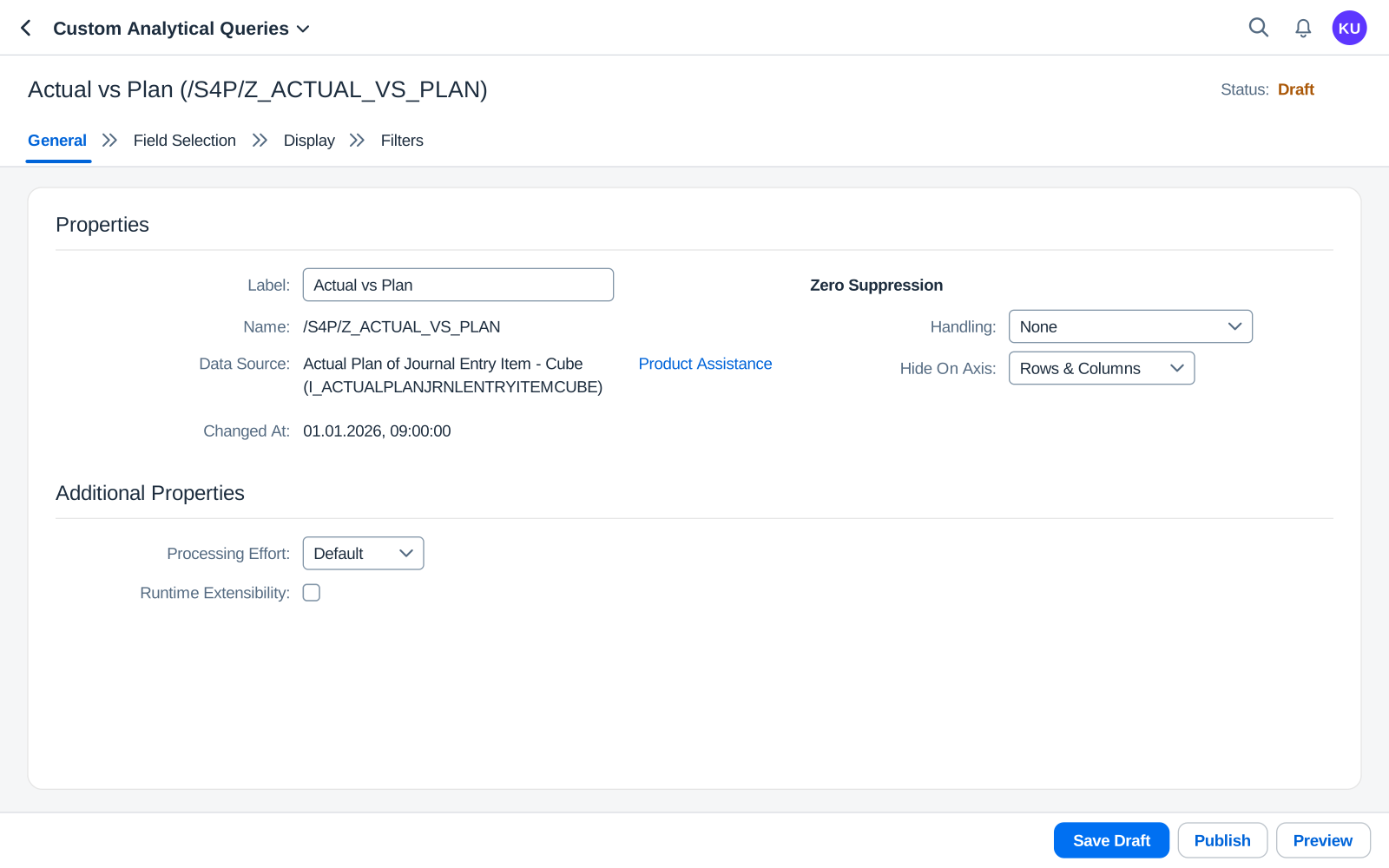
Step 2 of 15
GeneralCheck the general settings
The query opens on the General tab, with the status Draft. The label can still be changed here; the name and the data source are fixed. Zero Suppression and Processing Effort can stay as they are. Choose Save Draft whenever you like: a draft keeps your work without changing what users see.
- Label can still change
- Name is now fixed
- Data source
- Save Draft keeps your work
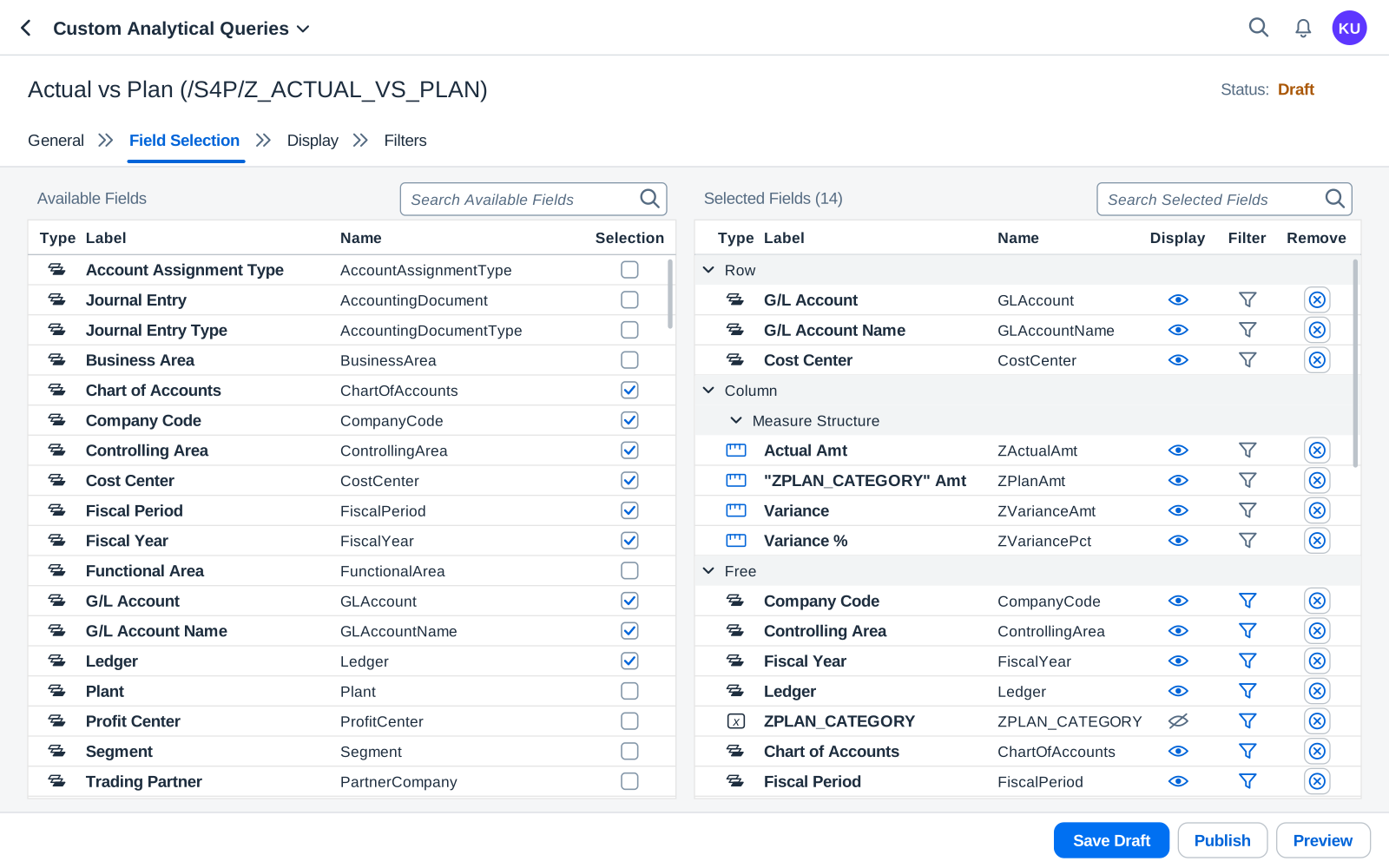
Step 3 of 15
Field SelectionPick the fields
On Field Selection, tick in Available Fields what the report needs: G/L Account, G/L Account Name and Cost Center for the lines, plus the fields users will filter on, such as Company Code, Controlling Area, Fiscal Year, Fiscal Period, Ledger and Chart of Accounts. Selected Fields shows them grouped by Row, Column and Free; the measures and the prompt you add on the Display tab appear there too. Fewer fields make a faster, cleaner query.
- Tick a field to select it
- Selected Fields: where each one sits
- Remove takes a field out
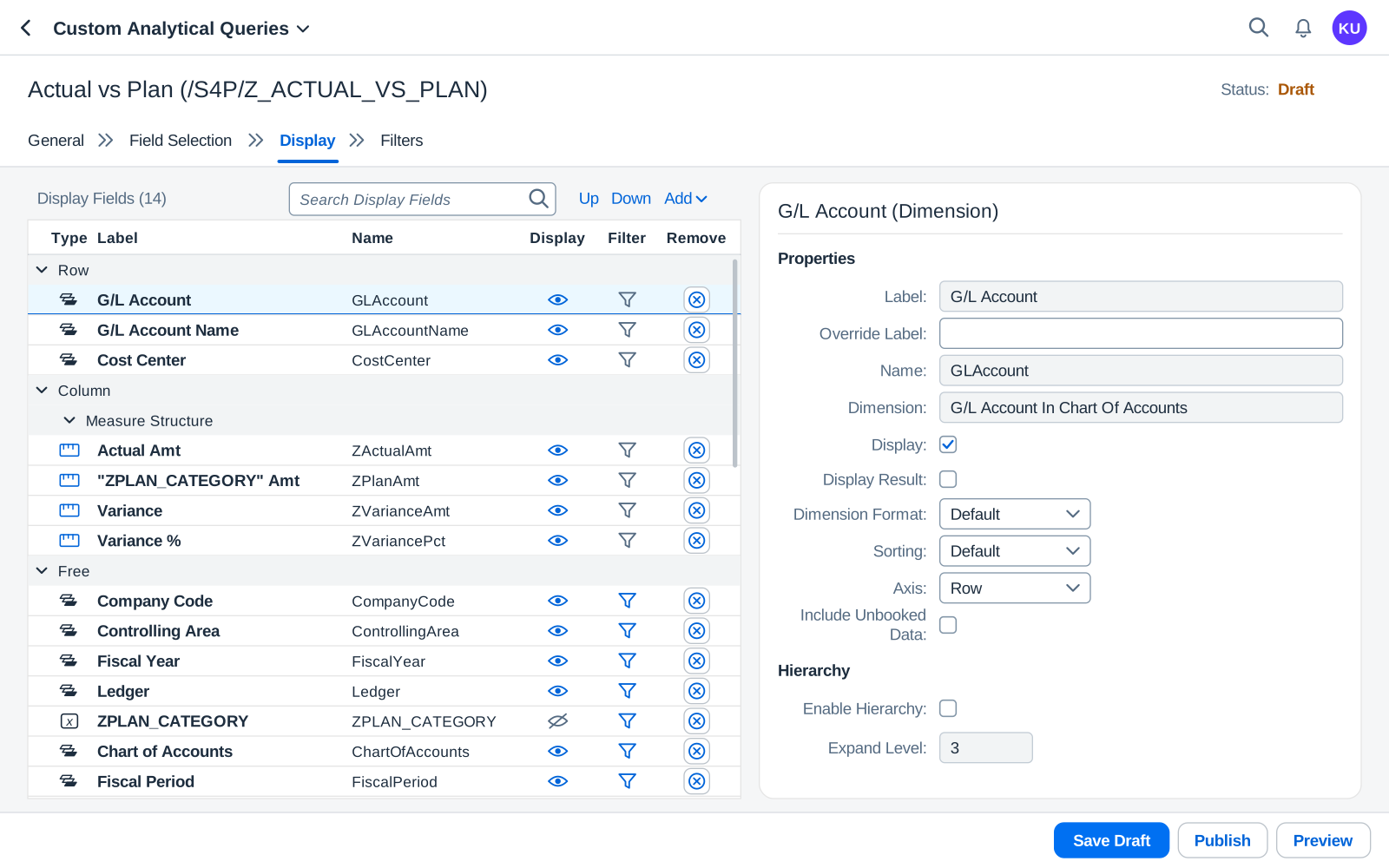
Step 4 of 15
DisplayPut the lines on the rows
On the Display tab, choose G/L Account and set Axis to Row. Do the same for G/L Account Name and Cost Center. Fields you leave free are not on the report when it opens, but users can drag them in. Display Result switches on totals for the field; Enable Hierarchy would show the accounts in a hierarchy instead of a flat list.
- G/L Account under Row
- Axis: Row
- Display Result: totals
Step 5 of 15
DisplayCreate the plan category prompt
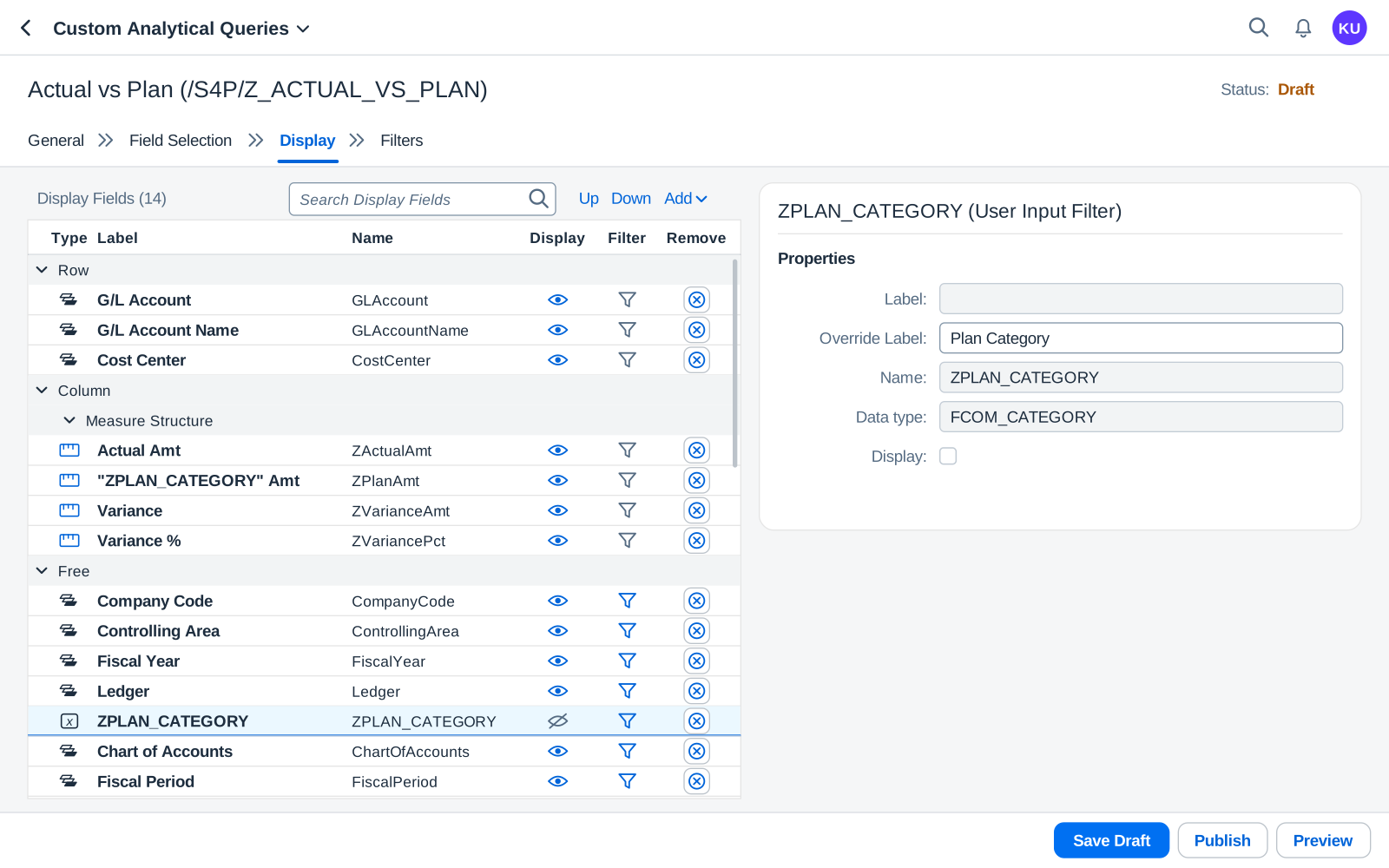
The plan column needs a value that the user chooses when the report opens. Use Add on the Display tab to create a user input filter named ZPLAN_CATEGORY, with the data type FCOM_CATEGORY, the plan category. Override Label is the text the prompt shows. Display stays off, so the prompt itself does not appear in the result.
- Override Label: Plan Category
- Name: ZPLAN_CATEGORY
- Data type FCOM_CATEGORY
- Display off
- The prompt in the list
Step 6 of 15
DisplayAdd the actual column
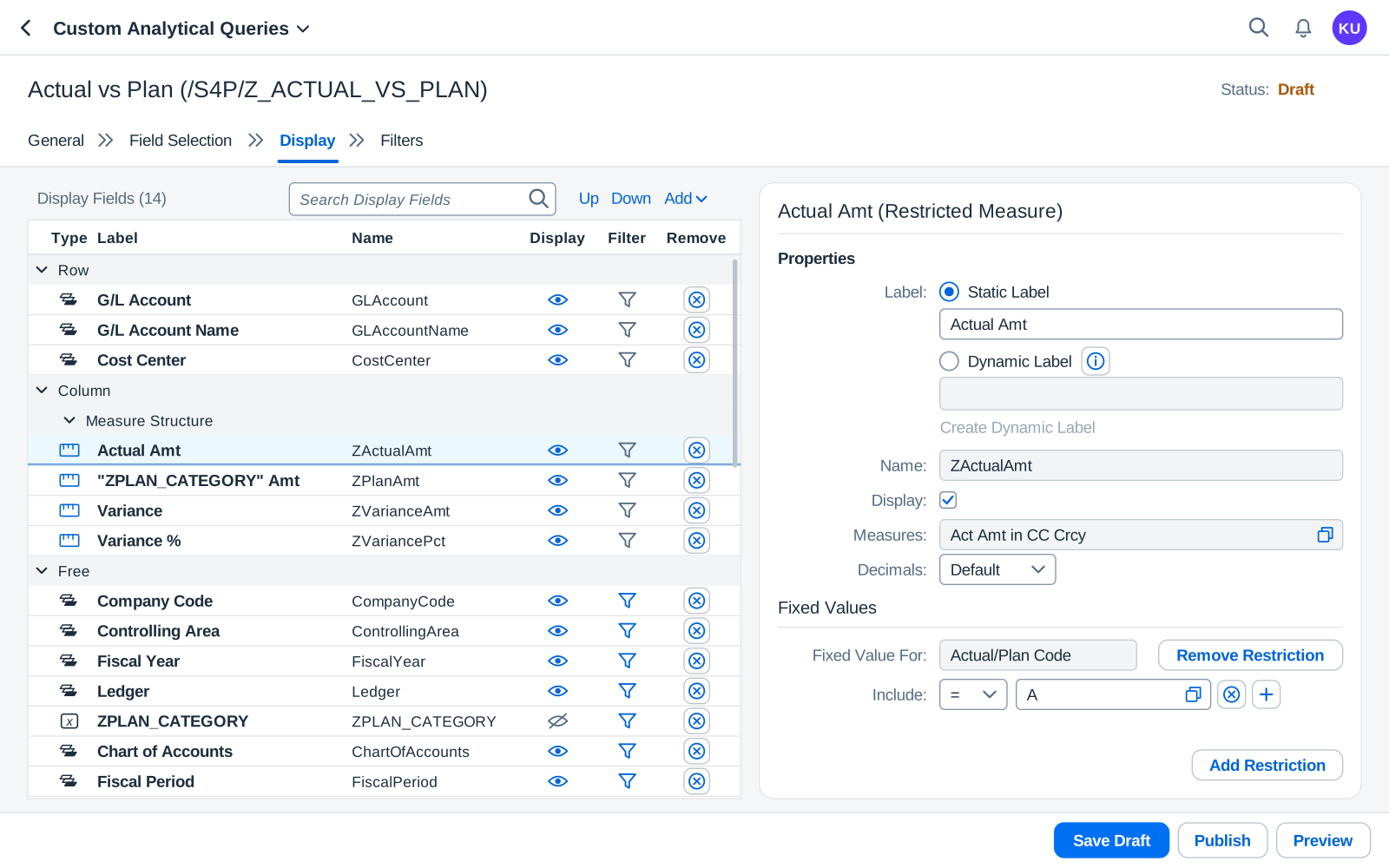
Choose Add, then Restricted Measure. Give it the name ZActualAmt and the static label Actual Amt, pick the measure Act Amt in CC Crcy, the amount in company code currency, and restrict Actual/Plan Code to A, so only actual postings are counted.
- Static label: Actual Amt
- Act Amt in CC Crcy
- Actual/Plan Code = A
Step 7 of 15
DisplayAdd the plan column with a dynamic label
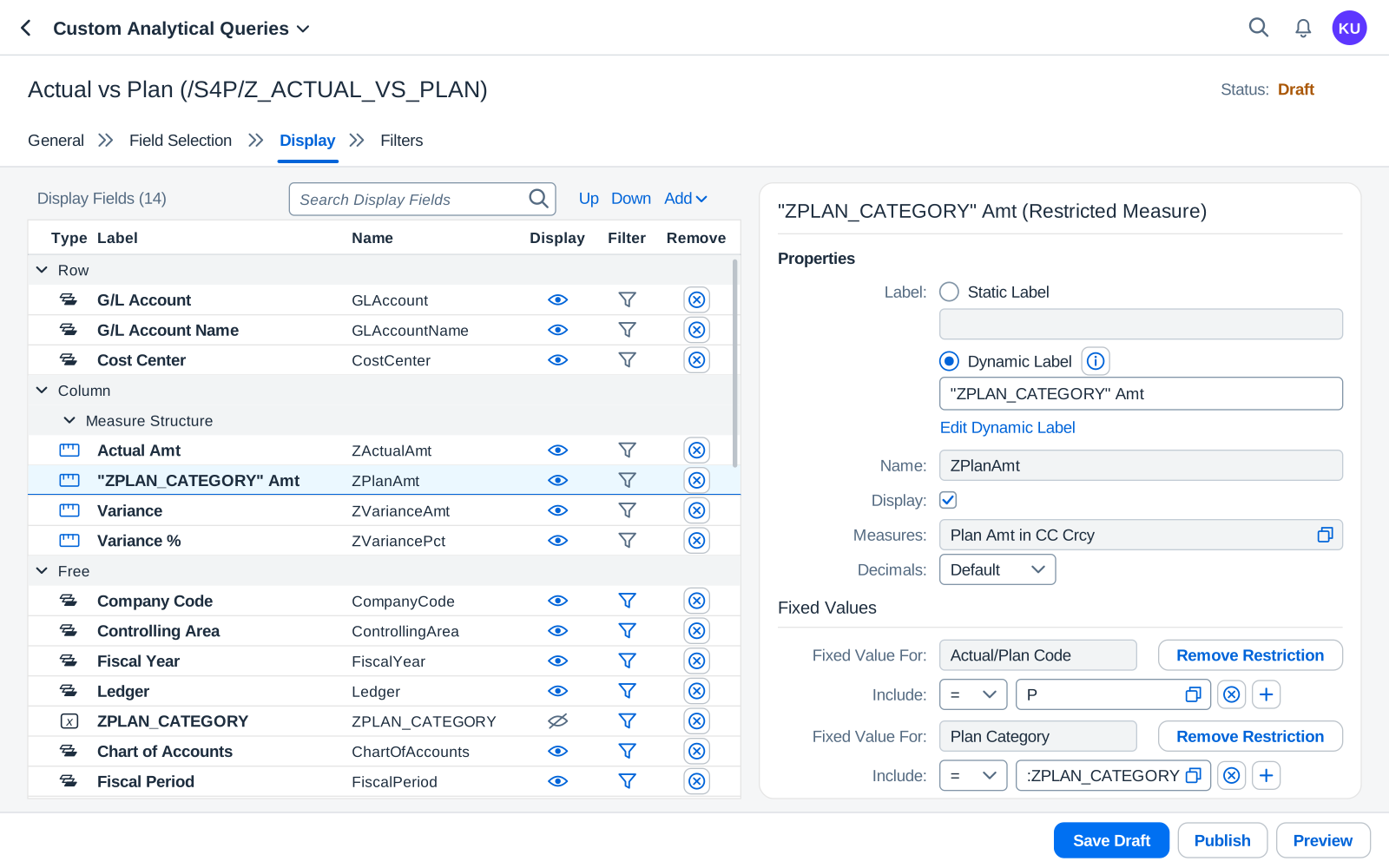
Add a second restricted measure, ZPlanAmt, with the measure Plan Amt in CC Crcy. Restrict it twice: Actual/Plan Code = P keeps plan data only, and Plan Category = :ZPLAN_CATEGORY takes the plan category from the prompt. Then choose Dynamic Label and type "ZPLAN_CATEGORY" Amt. The name in quotes is replaced by the value the user picks.
- Dynamic label with the prompt name
- Plan Amt in CC Crcy
- Actual/Plan Code = P
- Plan Category = :ZPLAN_CATEGORY
Step 8 of 15
DisplayAdd the variance
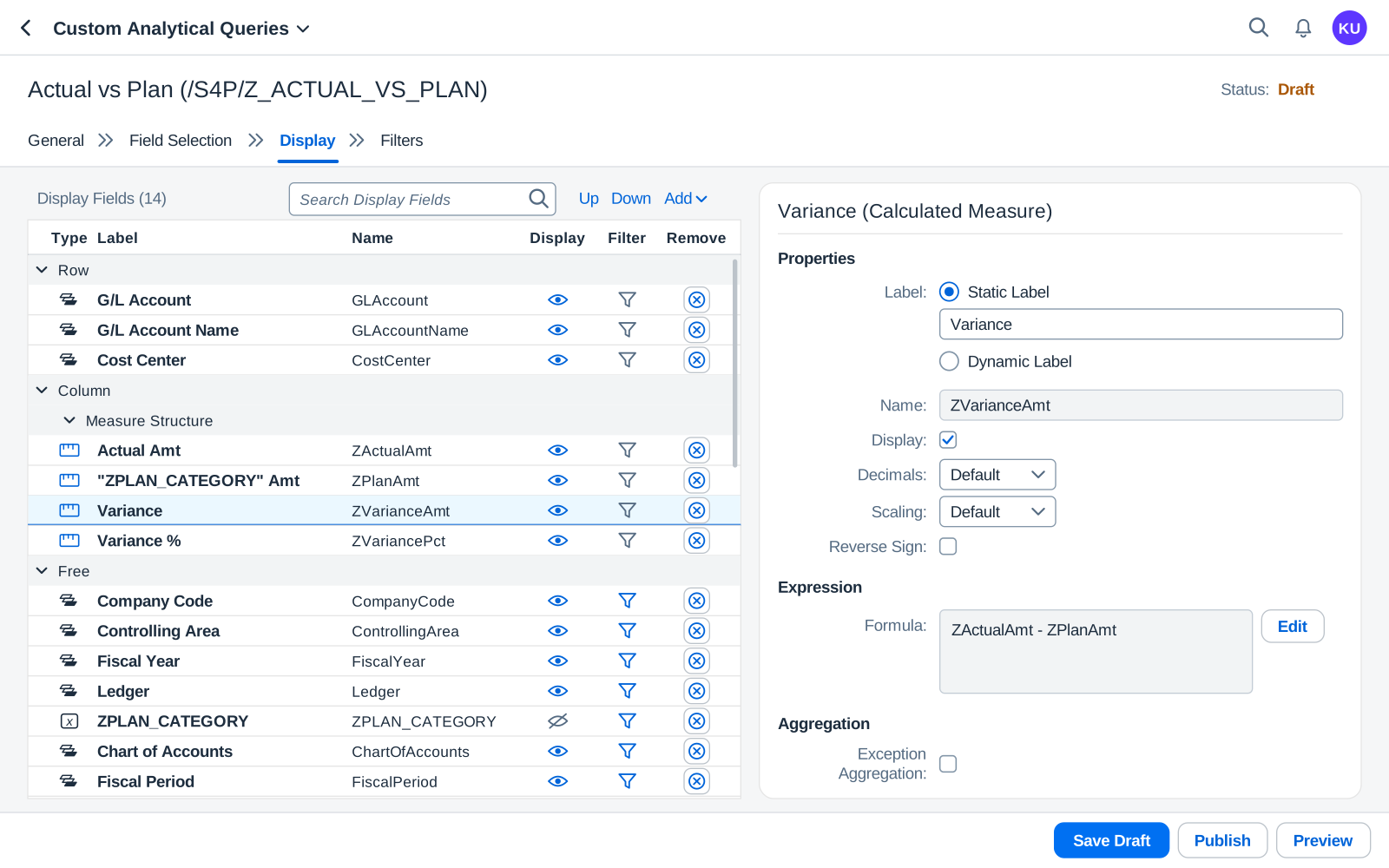
Choose Add, then Calculated Measure. Name it ZVarianceAmt with the label Variance, and choose Edit to write the formula ZActualAmt - ZPlanAmt. Formulas use the names of your measures, not their labels.
- Static label: Variance
- Formula with the measure names
- Edit opens the formula editor
Step 9 of 15
DisplayAdd the variance in percent
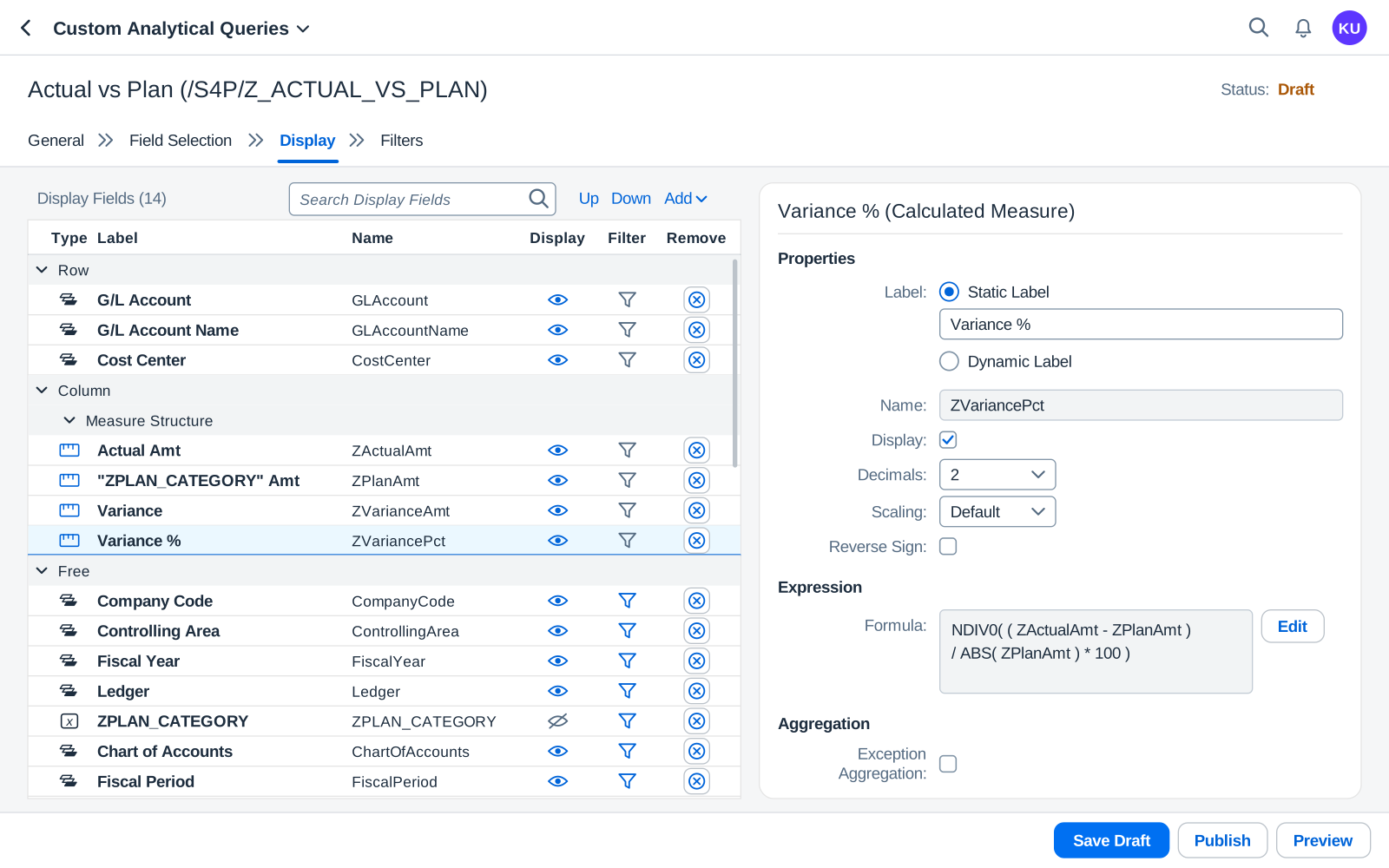
Add one more calculated measure, ZVariancePct, with the formula NDIV0( ( ZActualAmt - ZPlanAmt ) / ABS( ZPlanAmt ) * 100 ) and 2 decimals. NDIV0 returns 0 instead of an error when the plan is zero, and ABS keeps the sign right when the plan is negative. In the formula editor, Ctrl+Space lists the functions and your measures.
- Decimals: 2
- NDIV0 and ABS
- Edit: Ctrl+Space lists functions
Step 10 of 15
FiltersTurn fields into prompts
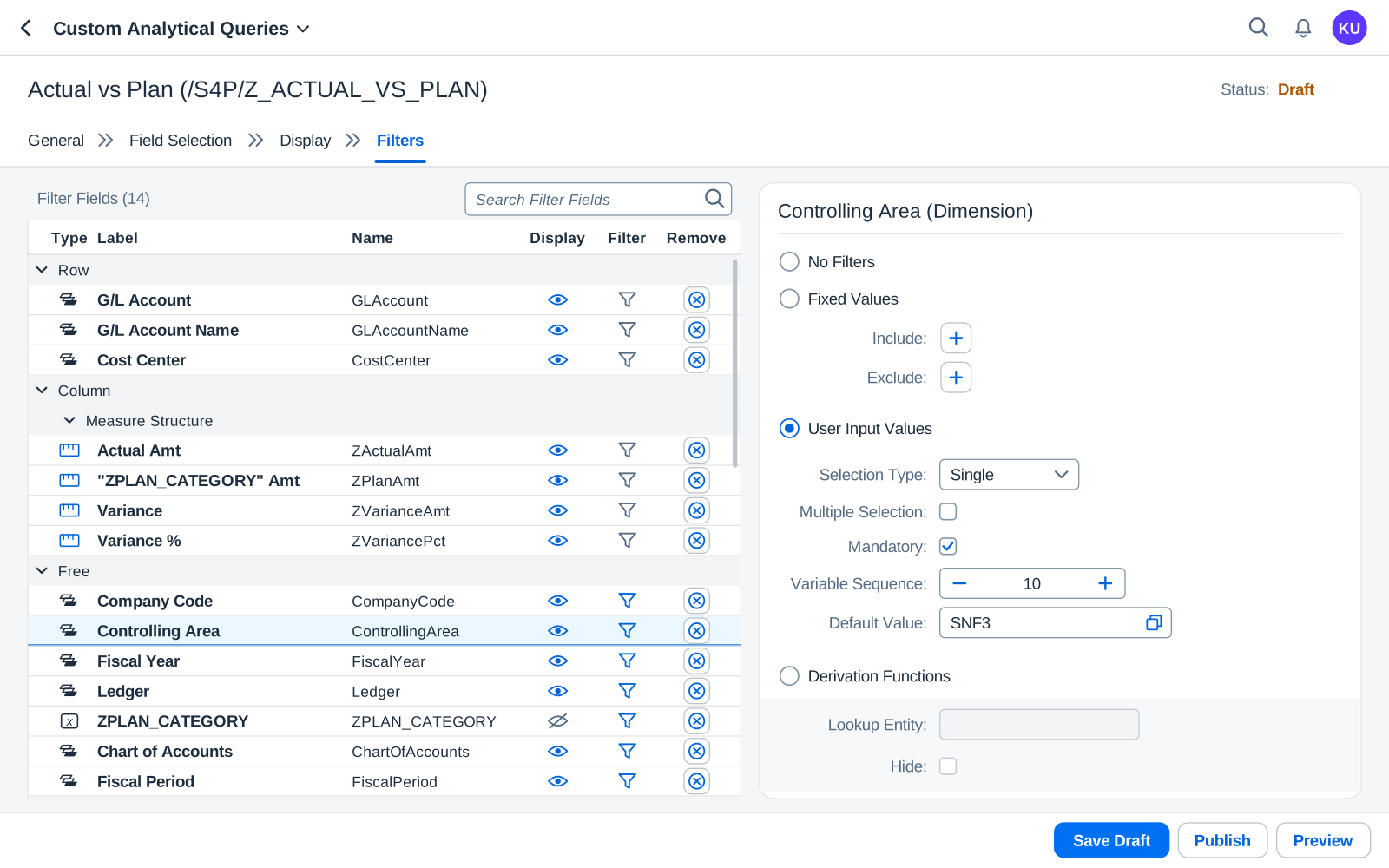
On the Filters tab, each field can be left open, fixed by you, or asked to the user. Choose Controlling Area and User Input Values: a single value, mandatory, Variable Sequence 10 (its place on the selection screen) and the default SNF3. Do the same for the other prompts in the table below the screens.
- User Input Values: a prompt
- Mandatory
- Variable Sequence 10
- Default SNF3
Step 11 of 15
FiltersGive the plan prompt a default
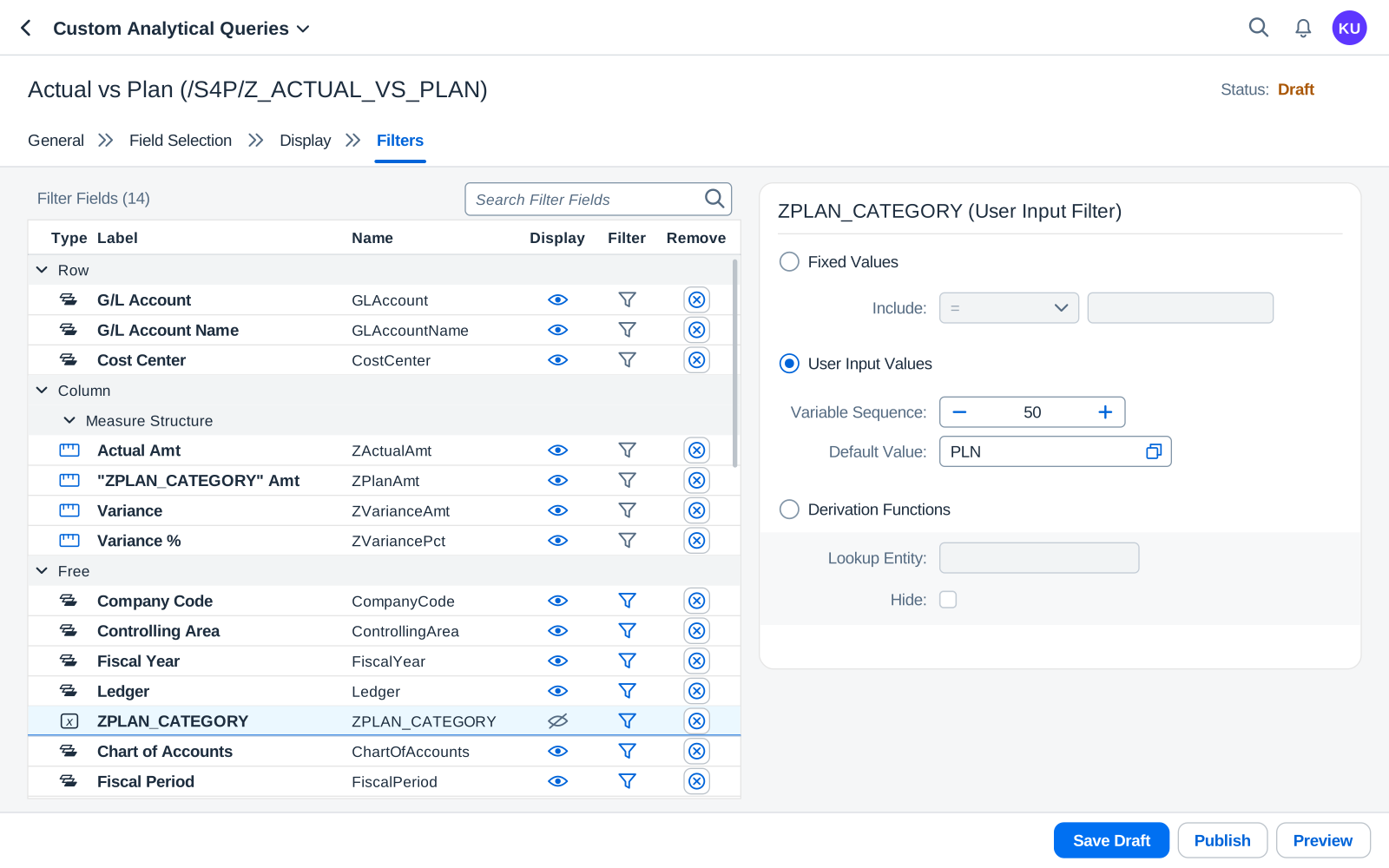
Choose ZPLAN_CATEGORY. A user input filter only needs User Input Values, a Variable Sequence and a default value. With PLN as the default, the report opens on that plan category, and the user can still pick another one before choosing Go.
- User Input Values
- Variable Sequence 50
- Default PLN
Step 12 of 15
PublishSave and publish
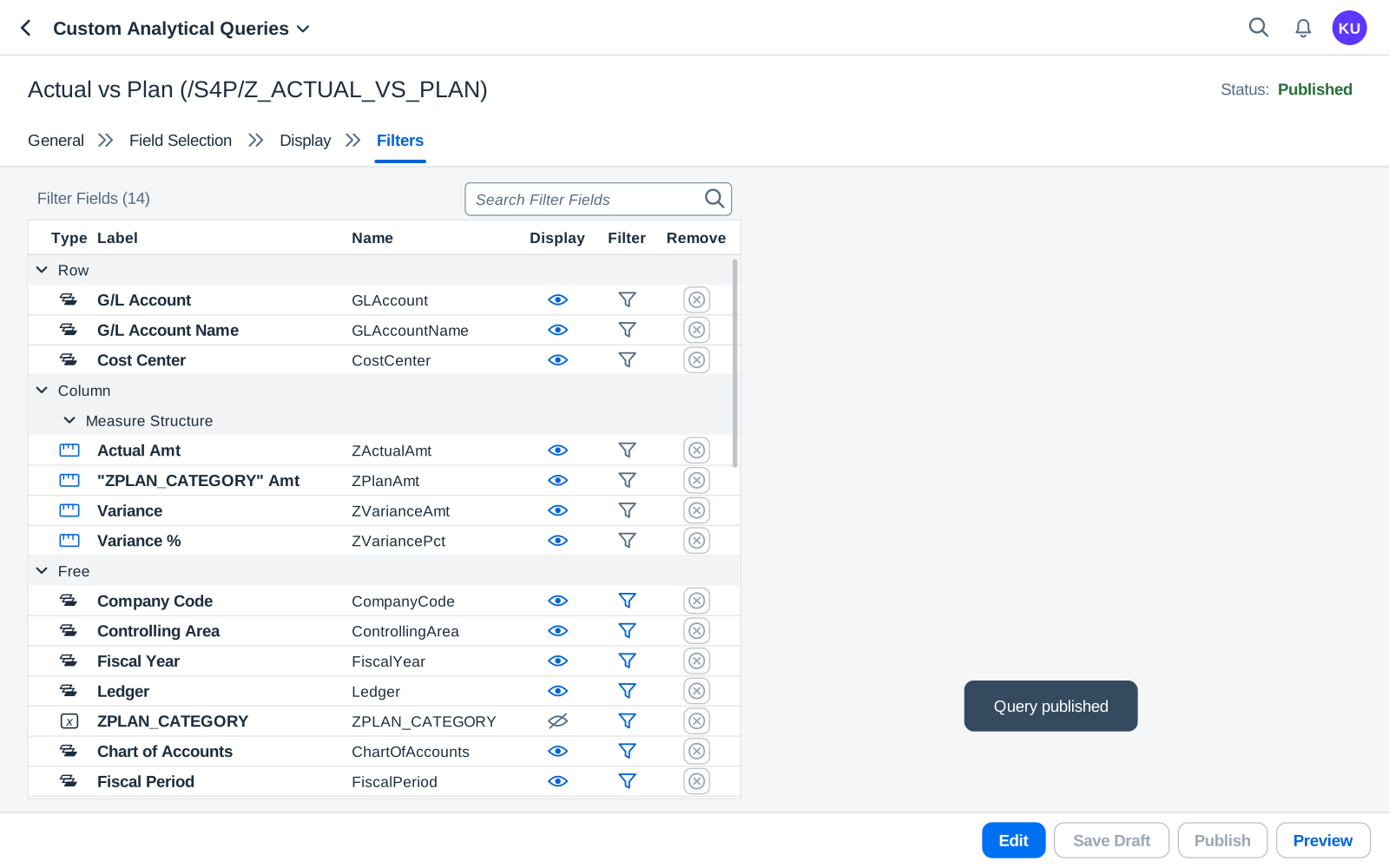
Choose Save Draft, then Publish. The status changes to Published and the message Query published appears. Publishing creates the query’s OData service, so other apps can use it. To change the query later, choose Edit: users keep the published version until you publish again.
- Status: Published
- Message: Query published
- Preview runs it
Step 13 of 15
PreviewOpen the preview
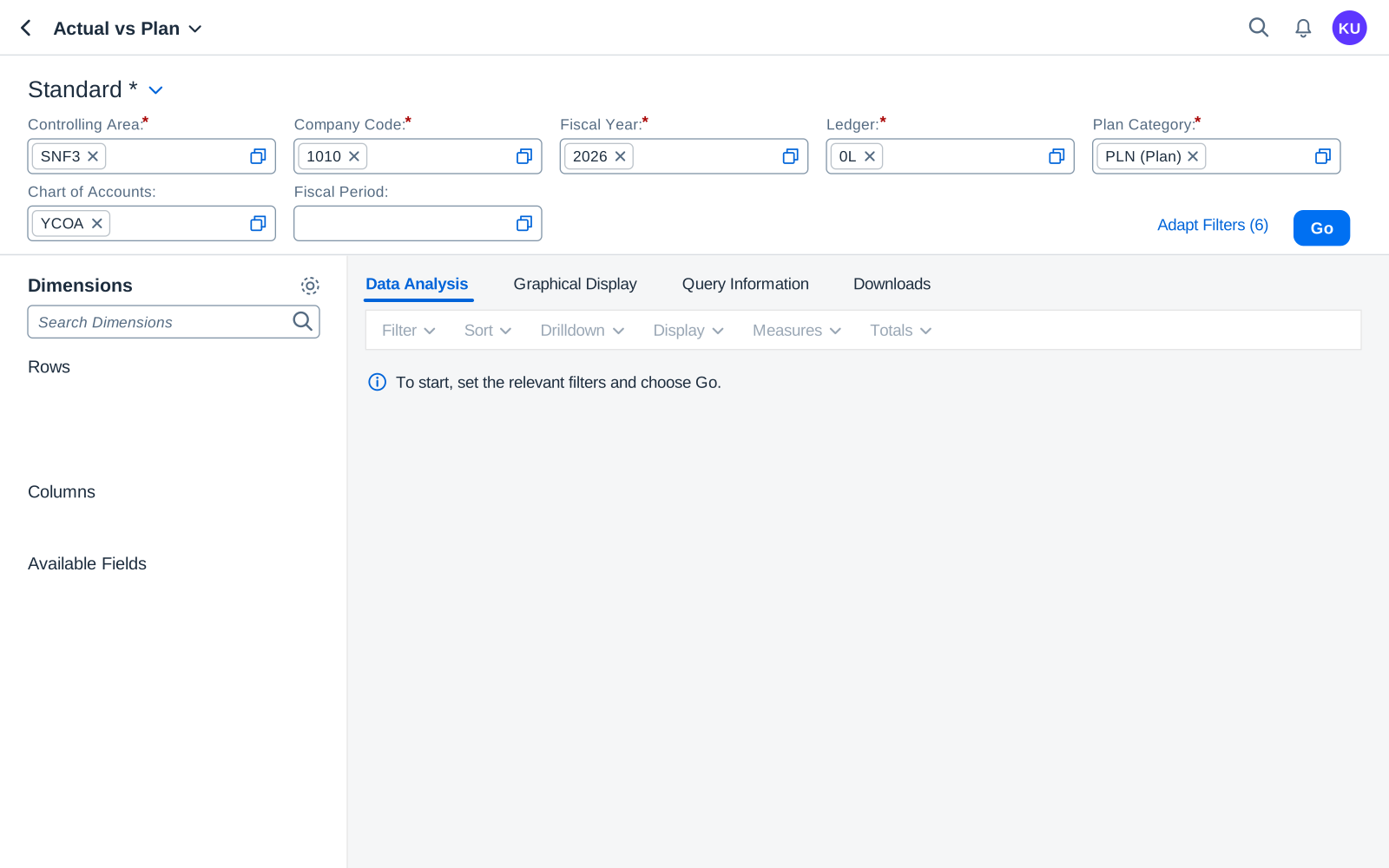
Choose Preview. The query opens with its prompts in the order of their Variable Sequence; an asterisk marks the mandatory ones, and the default values are already filled in. Check them and choose Go.
- Mandatory prompts (*)
- Plan Category: PLN by default
- Go
Step 14 of 15
PreviewRun it: the header follows the prompt
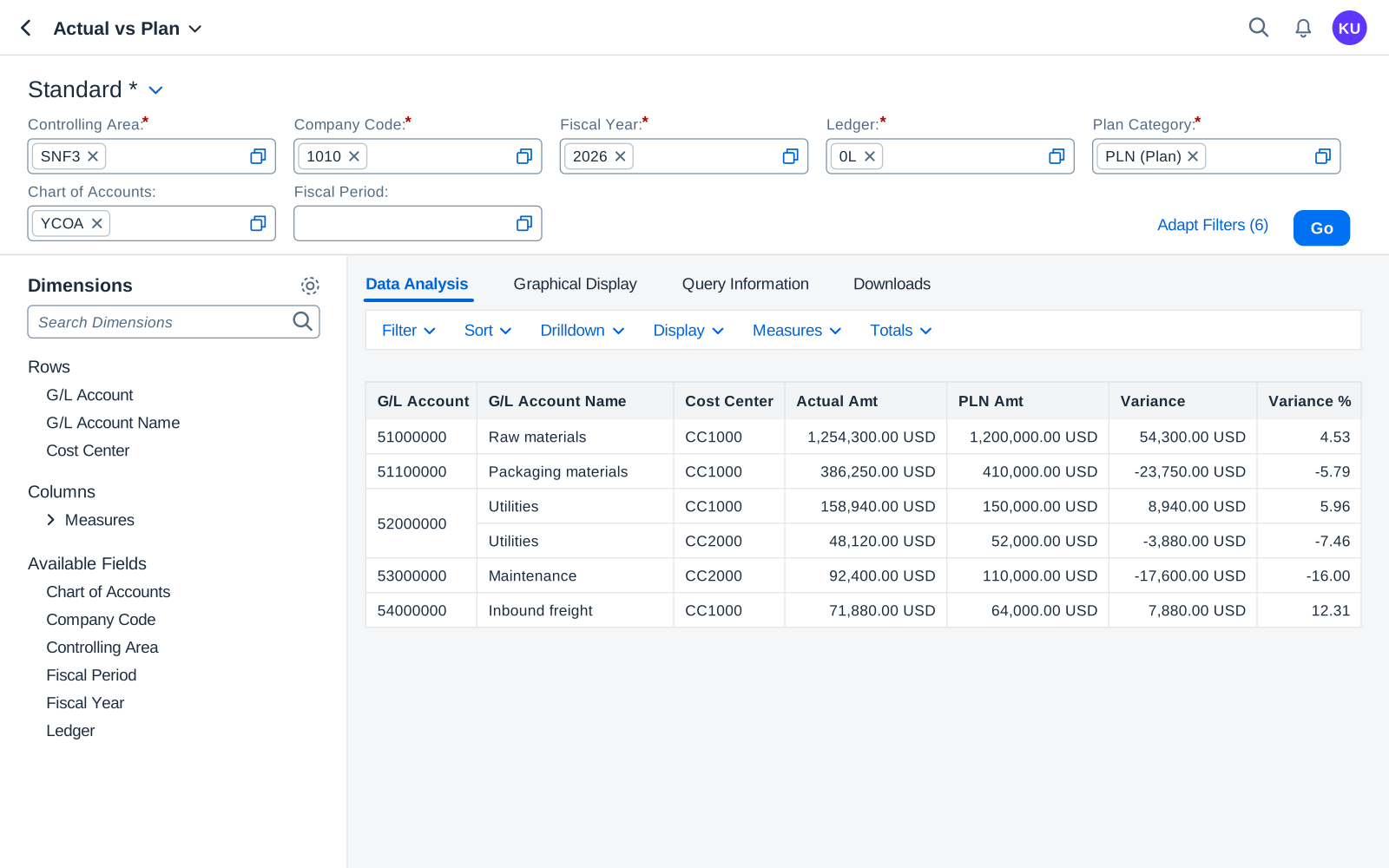
With Plan Category PLN the plan column reads PLN Amt; pick another plan category and the header changes with it. Variance is Actual Amt minus the plan, and Variance % is that difference over the plan. A line with no plan shows 0 % instead of an error.
- Plan Category prompt: PLN
- PLN Amt, from the dynamic label
- Variance = Actual - Plan
- Variance % with 2 decimals
Step 15 of 15
LaunchpadPut it on the launchpad
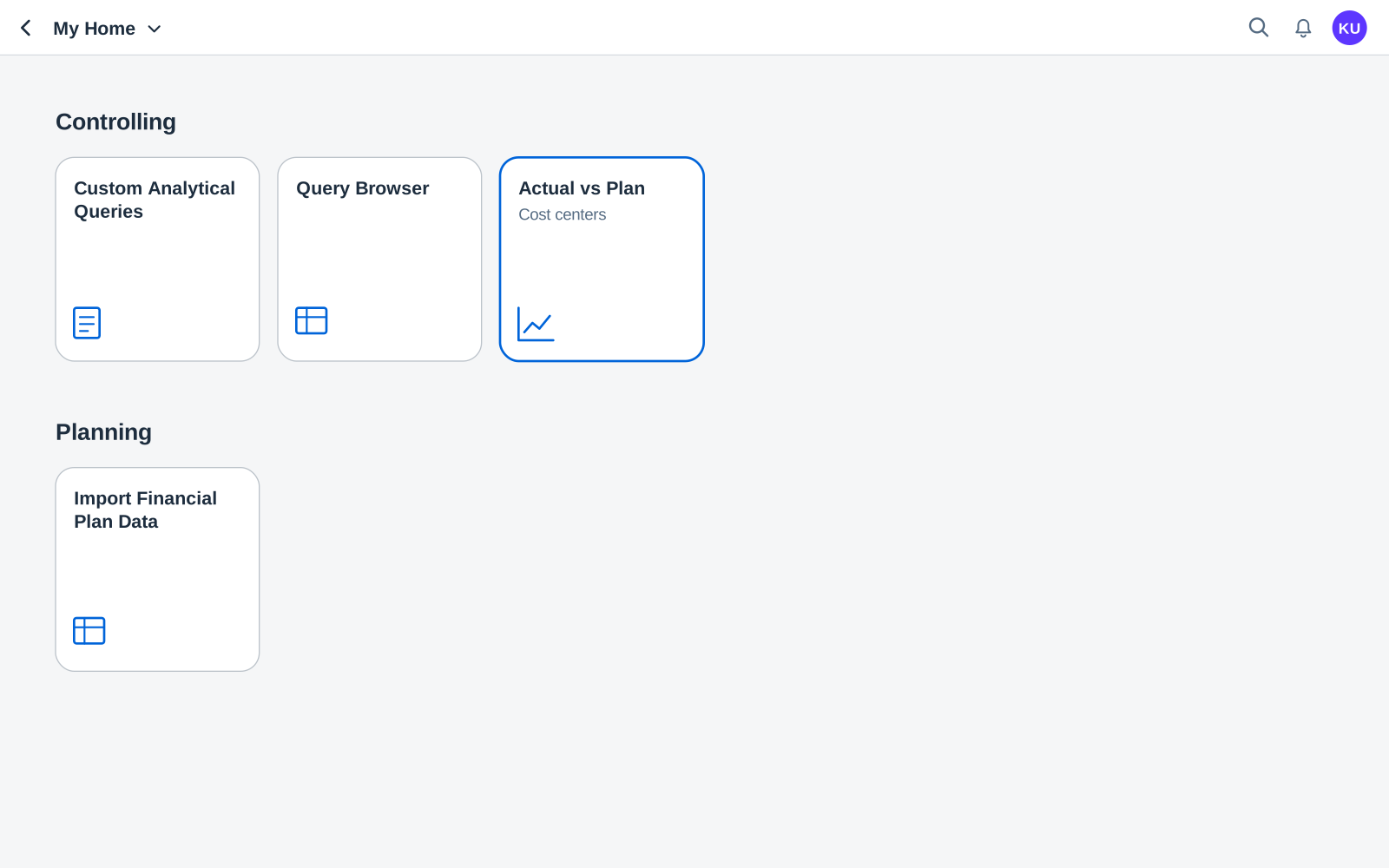
Publishing does not create a tile. To keep the report for yourself, choose Save as Tile in the preview: that tile is yours alone. For a team, create an application from the query and assign it to a business catalog, so it reaches users through their roles. The Custom Analytical Queries overview explains each route.
- Your report as a tile
- Where the query was built
The selection screen
Seven prompts, in this order
Every prompt is set on the Filters tab as User Input Values, the way steps 10 and 11 show. Variable Sequence decides the order on the selection screen; leaving gaps of ten makes room for a prompt added later.
Tip. A default fiscal year is a fixed value. Review it at the start of every year, or users open the report on last year.
| Seq. | Prompt | Multiple values | Mandatory | Default |
|---|---|---|---|---|
| 10 | Controlling Area | No | Yes | SNF3 |
| 20 | Company Code | Yes | Yes | 1010 |
| 30 | Fiscal Year | No | Yes | 2026 |
| 40 | Ledger | No | Yes | 0L |
| 50 | Plan Category (ZPLAN_CATEGORY) | No | Yes | PLN |
| 60 | Chart of Accounts | No | No | YCOA |
| 70 | Fiscal Period | Yes | No | — |
Names in this example
Everything we create starts with Z
The Z keeps your own names apart from the ones SAP delivers, so nobody mistakes a measure you built for a standard field.
The query name also gets the prefix your system adds. Most systems propose YY1_. A system whose extensibility setup uses a registered namespace adds that instead, written between slashes, like /S4P/ here.
| Name | What it is | How it is set |
|---|---|---|
/S4P/Z_ACTUAL_VS_PLAN | Query | Label Actual vs Plan, on the cube I_ACTUALPLANJRNLENTRYITEMCUBE. |
ZPLAN_CATEGORY | User input filter (prompt) | Data type FCOM_CATEGORY, override label Plan Category, default PLN, hidden in the result. |
ZActualAmt | Restricted measure | Act Amt in CC Crcy with Actual/Plan Code = A. Static label Actual Amt. |
ZPlanAmt | Restricted measure | Plan Amt in CC Crcy with Actual/Plan Code = P and Plan Category = :ZPLAN_CATEGORY. Dynamic label "ZPLAN_CATEGORY" Amt. |
ZVarianceAmt | Calculated measure | ZActualAmt - ZPlanAmt |
ZVariancePct | Calculated measure | NDIV0( ( ZActualAmt - ZPlanAmt ) / ABS( ZPlanAmt ) * 100 ), 2 decimals. |